Blocking of some sites in college campuses or office is quite common. One always wish to open up the blocked sites. Yes it is possible to open the blocked sites like torrent, facebook, youtube. This article is all about accessing the blocked site . It has been divided into levels.
1. On the Tools menu in Internet Explorer, click Internet Options, click the Connections tab, and then click LAN Settings.
Levels are as per the security of your ISP.
Like if you can access the blocked site by using tips and tricks in level 1, you need not to go to further levels.
LEVEL 1:
If you are connected using the LAN/wifi by your ISP then you can crack the security by two various methods...
#Proxy_SERVER Method:
Proxy server is basically spoofing up of your current location to your ISP. In this method what all we need to do is access the proxy servers. In this post you will have the option to chose the proxy server from a number of servers.
What you all have to do is just open your browser and type the following URL.
www.prontoproxy.com
1. You will now receive the page as shown below
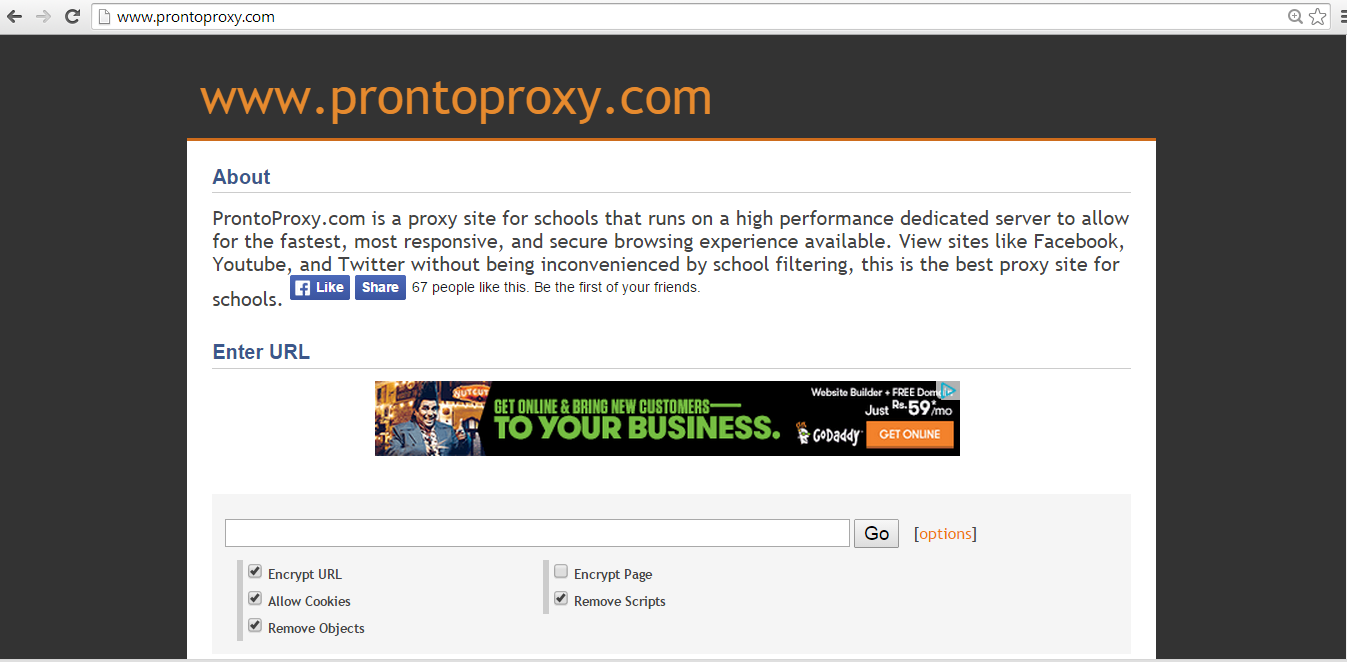
2. Type the URL you need to access in "ENTER URL:" column . say www.youtube.com for example and then press the GO button.

 3. You will now notice that you can successfully access youtube.
Congratulations! You can now access your blocked sites
Now in case if you are not able to access this as it might have been also blocked by your office or college ISP. You can use any of the other server like --
www.anonymizer.ru -Its a server of russia so the webpage language will be russian ofcourse

free-proxyserver.com

www.meebo.com/
www.iloveim.com/
www.the-cloak.com/
www.cantblock.me
www.mb35.info
www.cloaking.me
www.proxybrowsing.com
www.behidden.com
www.yourfreedom.net
www.hujiko.com
www.schoolproxylists.cn/
www.xysurfing.com/
www.googlefaker.com/
www.internetoxy.com/
1. You will now receive the page as shown below
2. Type the URL you need to access in "ENTER URL:" column . say www.youtube.com for example and then press the GO button.
Congratulations! You can now access your blocked sites
Now in case if you are not able to access this as it might have been also blocked by your office or college ISP. You can use any of the other server like --
www.anonymizer.ru -Its a server of russia so the webpage language will be russian ofcourse
free-proxyserver.com
www.meebo.com/
www.iloveim.com/
www.the-cloak.com/
www.cantblock.me
www.mb35.info
www.cloaking.me
www.proxybrowsing.com
www.behidden.com
www.yourfreedom.net
www.hujiko.com
www.schoolproxylists.cn/
www.xysurfing.com/
www.googlefaker.com/
www.internetoxy.com/
LEVEL 2:
You can use some of the tools to bypass your blocked security. They too act same like online proxy servers. Once you install them and run in the bsckground you are pretending to be somewhere else.
Some of the preferres tools include---
- Ultrasurf
- VPN Software
LEVEL 3:
It includes changing proxies within browser itself. A list of anonymous proxies can be downloaded from www.anonymizer.ru/proxy
Steps to change settings in various browsers--
@ Mozilla Firefox
1. Open Mozilla Firefox.
2. Click on Tools then click on Options….
3. Click on the Advance tab, then click on the Network sub-tab and finally on the Settings… button.
4. Tick the Manual Proxy Configuration: radio button.
5. In the HTTP Proxy: box, type the IP address of the proxy server.
6. In the Port: box, type the in the port number that is used by the proxy server.
7. Click OK to close the Connection Settings window.
8. Click OK to close the Options window.
9. DONE
1. Open Mozilla Firefox.
2. Click on Tools then click on Options….
3. Click on the Advance tab, then click on the Network sub-tab and finally on the Settings… button.
4. Tick the Manual Proxy Configuration: radio button.
5. In the HTTP Proxy: box, type the IP address of the proxy server.
6. In the Port: box, type the in the port number that is used by the proxy server.
7. Click OK to close the Connection Settings window.
8. Click OK to close the Options window.
9. DONE
@ Internet Explorer
1. On the Tools menu in Internet Explorer, click Internet Options, click the Connections tab, and then click LAN Settings.
2. Under Proxy server, click to select the Use a proxy server for your LAN check box.
3. In the Address box, type the IP address of the proxy server.
4. In the Port box, type the port number that is used by the proxy server for client connections (by default, 8080).
3. In the Address box, type the IP address of the proxy server.
4. In the Port box, type the port number that is used by the proxy server for client connections (by default, 8080).
5. You can click to select the Bypass proxy server for local addresses check box if you do not want the proxy server computer to be used when you connect to a computer on the local network (this may speed up performance).
6. Click OK to close the LAN Settings dialog box.
7. Click OK again to close the Internet Options dialog box.
6. Click OK to close the LAN Settings dialog box.
7. Click OK again to close the Internet Options dialog box.
@ Mozilla Firefox
1. Open Mozilla Firefox.
2. Click on Tools then click on Options….
3. Click on the Advance tab, then click on the Network sub-tab and finally on the Settings… button.
4. Tick the Manual Proxy Configuration: radio button.
5. In the HTTP Proxy: box, type the IP address of the proxy server.
6. In the Port: box, type the in the port number that is used by the proxy server.
7. Click OK to close the Connection Settings window.
8. Click OK to close the Options window.
9. DONE
1. Open Mozilla Firefox.
2. Click on Tools then click on Options….
3. Click on the Advance tab, then click on the Network sub-tab and finally on the Settings… button.
4. Tick the Manual Proxy Configuration: radio button.
5. In the HTTP Proxy: box, type the IP address of the proxy server.
6. In the Port: box, type the in the port number that is used by the proxy server.
7. Click OK to close the Connection Settings window.
8. Click OK to close the Options window.
9. DONE
@ Internet Explorer
1. On the Tools menu in Internet Explorer, click Internet Options, click the Connections tab, and then click LAN Settings.
2. Under Proxy server, click to select the Use a proxy server for your LAN check box.
3. In the Address box, type the IP address of the proxy server.
2. Under Proxy server, click to select the Use a proxy server for your LAN check box.
3. In the Address box, type the IP address of the proxy server.
4. In the Port box, type the port number that is used by the proxy server for client connections (by default, 8080).
5. You can click to select the Bypass proxy server for local addresses check box if you do not want the proxy server computer to be used when you connect to a computer on the local network (this may speed up performance).
5. You can click to select the Bypass proxy server for local addresses check box if you do not want the proxy server computer to be used when you connect to a computer on the local network (this may speed up performance).
6. Click OK to close the LAN Settings dialog box.
7. Click OK again to close the Internet Options dialog box.
7. Click OK again to close the Internet Options dialog box.
@ Safari.
* To change proxy settings: Open Safari
* Click Safari on top of the screen.
* Click "Preferences".
* In the menu bar at the top of the window, Click "Advanced".
* Click on the "Change Settings" button next to the Proxies label
* Click on the check box button next to Web Proxy (HTTP)
* Enter proxy server and port information
* Select "Apply Now" to save settings.
* Done.
* Click Safari on top of the screen.
* Click "Preferences".
* In the menu bar at the top of the window, Click "Advanced".
* Click on the "Change Settings" button next to the Proxies label
* Click on the check box button next to Web Proxy (HTTP)
* Enter proxy server and port information
* Select "Apply Now" to save settings.
* Done.
